
CyberPanel is one of the most popular free web hosting control panels in the world. It combines the speed of the LiteSpeed web server with an easy-to-use interface, letting anyone manage websites, email, DNS, databases, backups, and security from a single dashboard. In this complete guide, you will learn what CyberPanel is, every feature it offers, how to install it, and whether it is the right control panel for your server.
What Is CyberPanel?
CyberPanel is an open-source web hosting control panel built by CyberPanel LLC. It is mainly used with the OpenLiteSpeed or LiteSpeed Web Server, which gives it a significant performance advantage over many other panels. The panel was specifically designed to make server and website management fast, secure, and beginner-friendly.
Unlike traditional panels that rely on Apache, CyberPanel uses LiteSpeed technology. This means websites managed with CyberPanel can handle more traffic with fewer resources, deliver pages faster, and take advantage of server-level caching out of the box.
CyberPanel is available in three editions: a fully free community version, a paid Professional edition, and an Enterprise edition. The free version is extremely powerful and includes almost every feature a website owner needs. If you want to try it safely first, you can explore the CyberPanel demo before installing it on your server.
Why Use CyberPanel? Key Benefits
- Free and open source — the community edition costs nothing and has no license restrictions for basic use.
- Lightning-fast web server — built around OpenLiteSpeed and LiteSpeed Web Server.
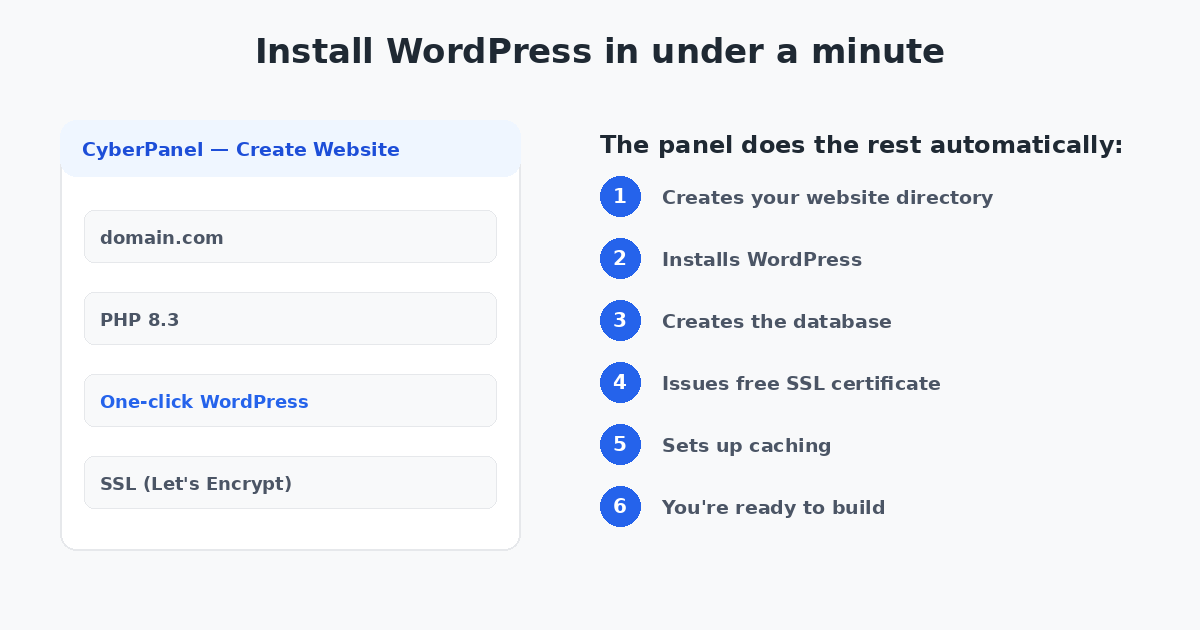
- One-click WordPress installation — install WordPress in under a minute from the panel.
- Server-level caching — LSCache gives WordPress sites a massive speed boost without extra plugins.
- Free SSL certificates — issue and auto-renew SSL for all your domains.
- Built-in DNS and email — manage domains and mailboxes without separate software.
- Easy backups — local and cloud backups with simple scheduling.
- Great for VPS users — lightweight enough for a 1 GB RAM server.
- Modern, clean interface — simpler to learn than cPanel or WHM.
CyberPanel Features — the Full List
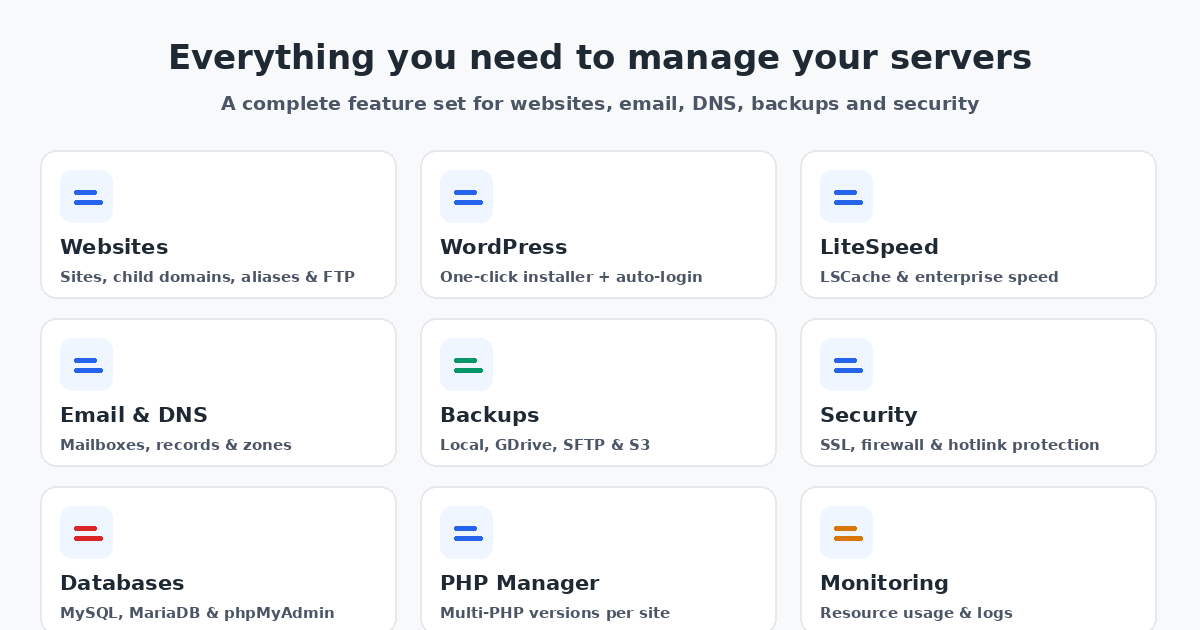
The feature set is what makes CyberPanel stand out. Below is every major feature, explained in plain language, with tips on how to use it in your daily work.
1. Full Website Management
CyberPanel lets you create, manage, and host an unlimited number of websites on one server. For each website you can easily manage:
- Primary domains and additional domains
- Child domains (subdomains) from a parent website
- Domain aliases so multiple domains serve the same site
- FTP and SFTP accounts for uploading files securely
- PHP versions per website
- Website-specific access, logs, and directories
You can learn how to create and manage separate file accounts in our guide on creating an SFTP account in CyberPanel.
2. One-Click WordPress Installer
CyberPanel includes a built-in WordPress installer that automates the entire setup. It creates the website, installs WordPress, generates the database, and configures the connection for you. Many hosts use it because it turns a technical task into two clicks.
The installer also supports automatic login, so you can jump straight from the CyberPanel dashboard into your WordPress admin without typing credentials every time.
3. LiteSpeed & LSCache Integration
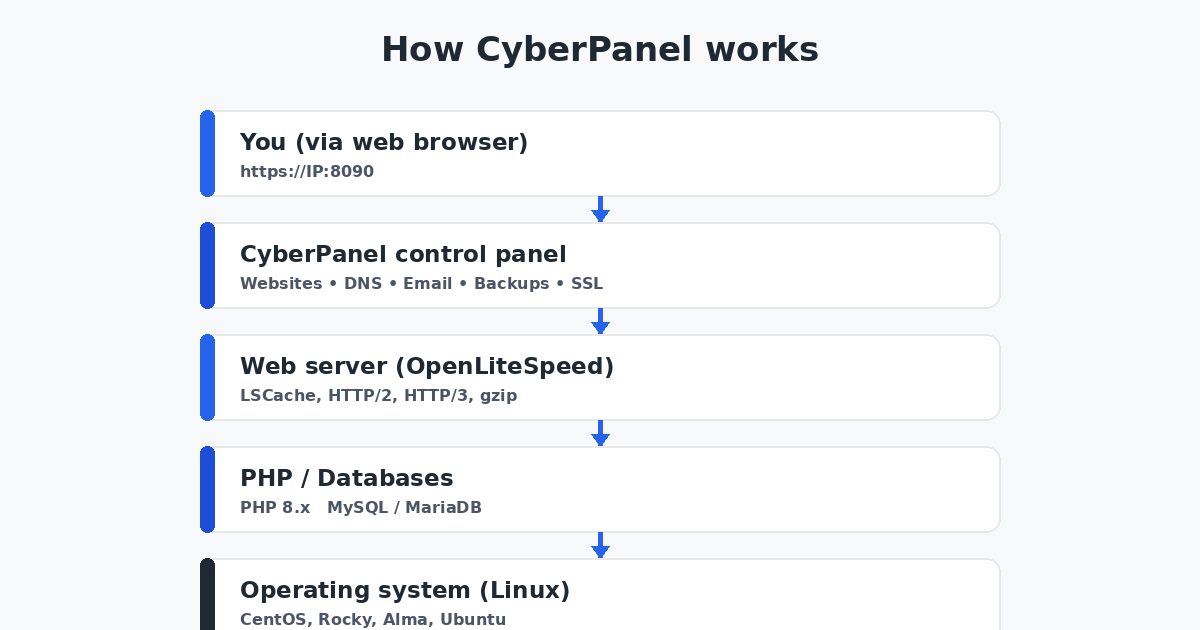
CyberPanel runs on the LiteSpeed web server family, which is widely regarded as one of the fastest web servers available. With the free OpenLiteSpeed edition you still get:
- HTTP/2 and HTTP/3 support
- Built-in mod_rewrite support ( .htaccess compatible )
- Gzip compression and caching
- Protection against certain DDoS and brute-force attacks
If a website uses the LiteSpeed Cache plugin (LSCache), page caching, object caching, and more are handled at the server level. This is a big reason sites hosted on CyberPanel score well on speed tests.
4. DNS Management
CyberPanel comes with a full DNS manager so you can control domain records from the same interface where your websites live. You can create and edit:
- A records and AAAA records
- CNAME records
- MX records for email
- TXT records (SPF, DKIM, verification records)
- NS records and SOA settings
This is perfect when you want to run your own nameservers for reseller-style hosting.
5. Email Server & Mailboxes
The panel includes a solid email server using Postfix and Dovecot (or powered by the integrated RainLoop webmail). You can create unlimited mailboxes for your domains, set forwarders, and access your mail from any browser. Enterprise users can even monitor queue health and configure advanced anti-spam settings.
6. SSL Certificates & Security
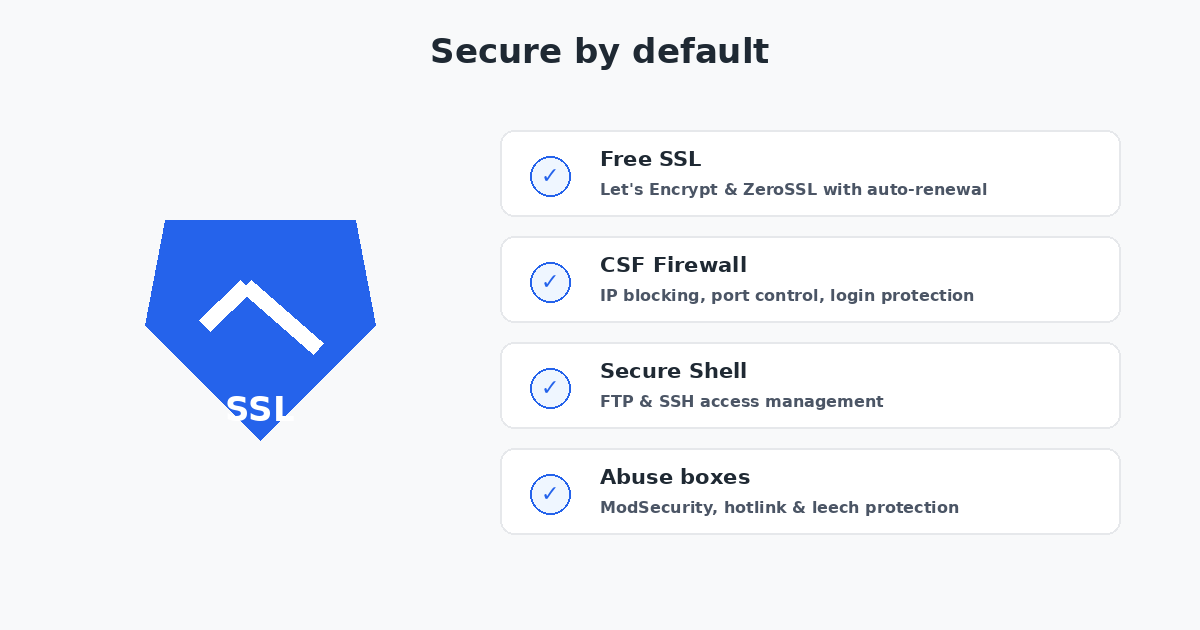
Security is a major focus of CyberPanel. With a single click you can issue a free SSL certificate via Let’s Encrypt, and the panel automatically handles renewal. Website owners never have to worry about expired certificates again.
Other security features include:
- CSF firewall support to block malicious IPs and control open ports
- Two-factor authentication (2FA) for panel logins
- ModSecurity web application firewall rules
- Hotlink protection to stop other sites using your bandwidth
- IP allow/deny lists per website
- Secure SSH access management
See how to lock down the panel in the guide on enabling CyberPanel 2FA or harden it with CSF on CyberPanel.
7. Databases & phpMyAdmin
CyberPanel makes creating databases painless. It supports MySQL and MariaDB, and each database gets a dedicated user with its own password. The phpMyAdmin integration lets you manage tables, import and export SQL files, and run queries directly from the browser.
For each website you can also assign a separate database user — a good practice that makes your setup more secure.
8. PHP Manager & Multi-PHP Support
A standout feature of CyberPanel is its PHP manager. You can install and run several PHP versions side by side (from PHP 7.x up to the latest PHP 8.x releases) and assign a different version to each website. You can also tweak php.ini settings per website, such as memory limits, upload size, and execution time — without touching the command line.
9. Backups & Restore
Losing your site data is never fun, which is why CyberPanel offers several backup methods:
- Local backups — store copies directly on the server
- Incremental backups — save only what changed, saving space
- Google Drive backups — ship backups to the cloud
- SFTP / FTP backups — send copies to another server
- S3 and B2 cloud backups — for enterprise workflows
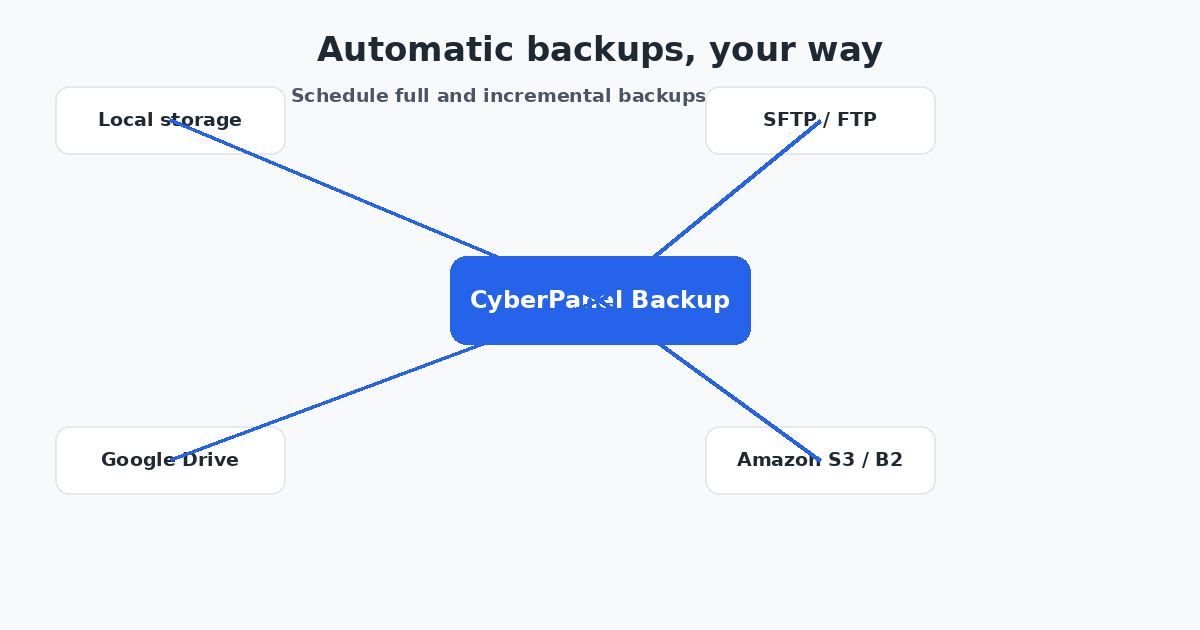
You can schedule backups to run automatically every day and restore any website from the panel in a few clicks. For a closer look, read our complete guide on CyberPanel backup settings.
10. File Manager & FTP
CyberPanel includes a built-in file manager so you can upload, edit, rename, zip, and move files right from the browser. It also integrates with the server for fast file transfers, and supports per-website FTP users with strict directory permissions. Many users pair it with the SFTP guide we linked above.
11. Firewall & Server Security
Beyond SSL, CyberPanel offers a firewall section (based on Firewalld or CSF) where you can quickly open or block ports, whitelist IPs, and monitor login attempts. It also integrates with ModSecurity and supports brute-force protection for SSH and panel logins.
12. Resource Monitoring & Logs
The dashboard shows live CPU, RAM, and disk usage so you always know how healthy your server is. Logs for the panel, websites, email, and web server are all accessible from the interface, which makes troubleshooting much faster.
CyberPanel also comes with Munin monitoring for deeper analytics over time.
13. Cron Jobs & Automation
You can create cron jobs from the panel with a simple form — select a schedule, add the command, and it runs automatically. This is handy for scheduled backups, WordPress updates, or maintenance scripts.
14. Remote API
Developers can automate everything through the CyberPanel Remote API. It supports JSON-RPC calls to create websites, install WordPress, manage DNS, and much more. For a hands-on walkthrough, see our tutorial on enabling CyberPanel API access.
CyberPanel Versions: Free vs Professional vs Enterprise
Choosing the right edition depends on your needs. Here is a quick comparison:
| Feature | Free (Community) | Professional | Enterprise |
|---|---|---|---|
| Price | $0 | Paid subscription | High-availability plans |
| LiteSpeed / OpenLiteSpeed | Both | Both | Both |
| WordPress installer | Yes | Yes | Yes |
| Email server | Limited | Full | Full + queue monitor |
| CSF firewall | Yes | Yes | Yes |
| Remote API | Yes | Yes | Yes |
| S3 / B2 backups | No | No | Yes |
| Priority support | Community | Ticket | Dedicated |
The free version is genuinely useful for a personal blog, an agency, or a single VPS. Most users never need to pay for CyberPanel.
CyberPanel System Requirements
CyberPanel is lightweight, but you still need a server that can run it comfortably:
- RAM: Minimum 1 GB (2 GB+ recommended)
- Disk: 10 GB free or more, depending on your number of websites
- CPU: 1 core minimum, 2+ recommended
- Operating system: CentOS 7/8, Rocky Linux 8/9, AlmaLinux 8/9, Ubuntu 20.04/22.04/24.04
- Fresh server recommended (no existing web server or control panel)
Need a cheap server to practice on? Check our recommendations for the best CyberPanel VPS hosting.
How to Install CyberPanel (Step by Step)
Installation takes only a few minutes if you follow these steps:
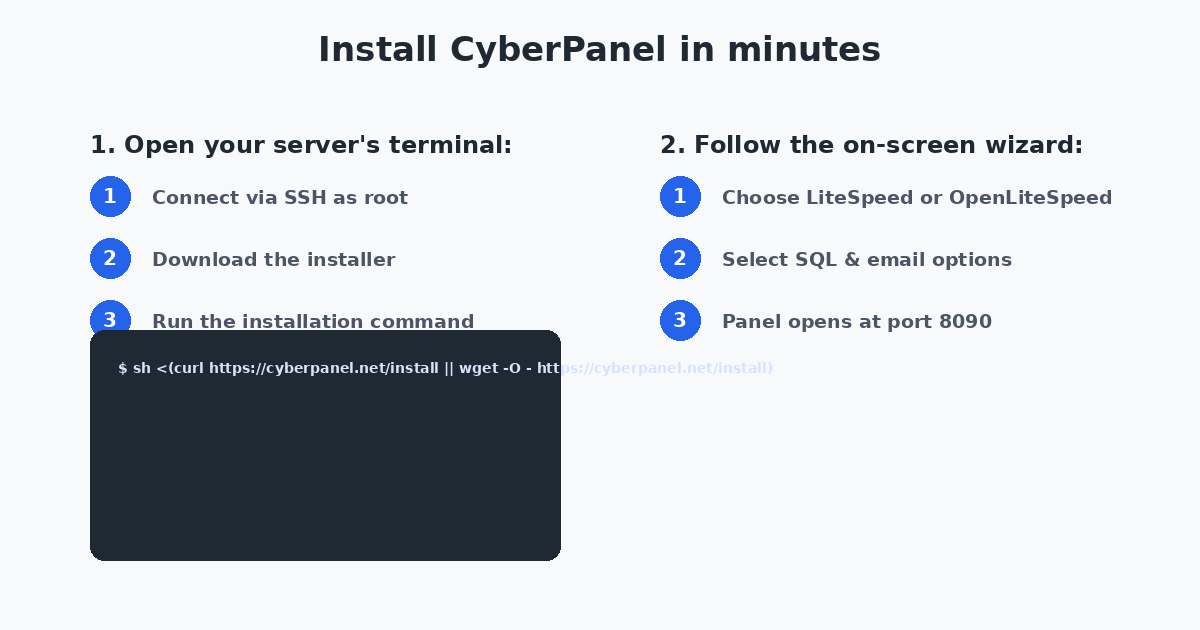
- Log in to your server as root over SSH. If you cannot, ask your provider for root access.
- Update your system packages with
apt update && apt upgrade(Ubuntu) oryum update(Rocky/Alma). - Run the official installer:
sh <(curl https://cyberpanel.net/install || wget -O - https://cyberpanel.net/install) - Choose your web server — LiteSpeed or OpenLiteSpeed. OpenLiteSpeed is free and recommended for testing.
- Select your options for PHP, DNS, email, and firewall when prompted.
- Wait for the installation to complete. It typically takes 5–15 minutes.
- Log in by visiting
https://YOUR-SERVER-IP:8090in your browser.
For a Ubuntu-specific walkthrough, follow our step-by-step guide on CyberPanel installation on Ubuntu. Once installed, you might also want to learn how to access CyberPanel and how to change the CyberPanel password.
How to Create Your First Website in CyberPanel
- Log in to the panel and go to Websites → Create Website.
- Enter your domain name (for example,
example.com). - Choose the PHP version you want for this website.
- Set the website admin email and package.
- Tick the options you need, such as a database or additional PHP features.
- Click Create Website. Your site is now live.
The panel creates the document root, FTP account, and necessary configuration automatically. From here you can add SSL, set up DNS, or install WordPress.
CyberPanel Pros and Cons
Pros
- Excellent performance thanks to LiteSpeed
- Genuinely free core panel
- Easy one-click WordPress setup
- Modern and beginner-friendly UI
- Built-in DNS, email, and backups
- Automatic free SSL certificates
- Very low server requirements
Cons
- Best experience is with LiteSpeed (paid) or OpenLiteSpeed
- Fewer third-party integrations than cPanel
- Full email features are limited on the free edition
- Documentation can be hard to follow for total beginners
- No default support for Windows (it is Linux-only)
CyberPanel vs cPanel vs Other Panels
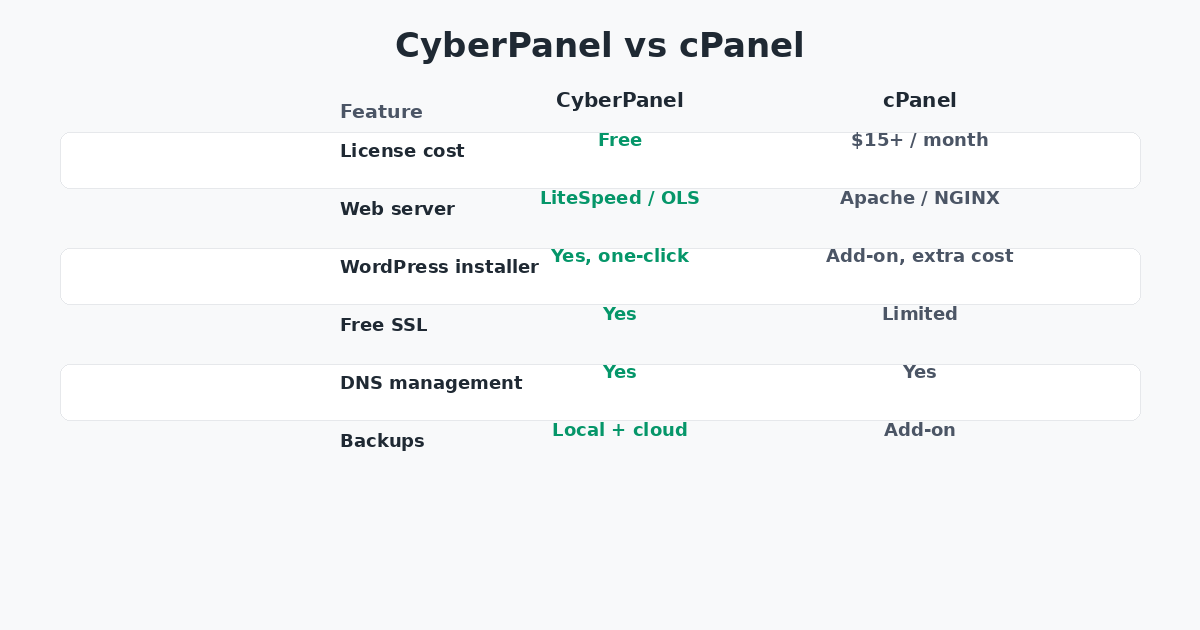
The most common question users ask is how CyberPanel compares to cPanel. In short: cPanel is more mature and widely supported, but it costs money and is heavier. CyberPanel is free, faster, and lighter, but has a smaller ecosystem. We break this down in detail in our CloudPanel vs CyberPanel comparison.
| Factor | CyberPanel | cPanel |
|---|---|---|
| License cost | Free | From about $15/month |
| Web server | LiteSpeed / OpenLiteSpeed | Apache / NGINX |
| WordPress installer | Built-in | Add-on with extra cost |
| Free SSL | Yes (Let’s Encrypt) | Limited / paid |
| Server resources | Very light | Heavier |
| Performance | Excellent | Good |
Other free alternatives include Webmin, VestaCP, and HestiaCP, but none combine LiteSpeed speed with a modern interface as well as CyberPanel does.
CyberPanel FAQ
What is CyberPanel used for?
CyberPanel is used to manage web servers: hosting websites, creating email accounts, managing DNS, databases, SSL certificates, backups, and server security from one web interface.
Is CyberPanel safe to use?
Yes, when installed on a clean server with security best practices. It supports firewalls, ModSecurity, 2FA, and automatic SSL. You can harden it further with CSF on CyberPanel.
Is CyberPanel really free?
The community edition is free forever and includes most core features. Professional and Enterprise editions add advanced email, cloud backup, and support options.
Does CyberPanel work with WordPress?
Yes. CyberPanel has a one-click WordPress installer and supports LSCache, which makes WordPress sites extremely fast.
What port does CyberPanel use? Can I change it?
By default the panel runs on port 8090. You can change it, and for extra safety you should restrict access to your IP. The API runs on 8090 as well, and the code editor is exposed on 8091.
Can I remove CyberPanel if I don’t like it?
Yes. If you decide to move to another panel, follow our guide on how to remove CyberPanel cleanly.
Conclusion
CyberPanel is easily one of the best free web hosting control panels available today. It combines the raw speed of LiteSpeed with an intuitive interface, one-click WordPress installation, automatic SSL, built-in DNS and email, flexible PHP versions, and dependable backups — all while running on servers with just 1–2 GB of RAM.
Whether you are a beginner setting up your first website or a system administrator managing multiple servers, CyberPanel gives you a powerful, free, and modern alternative to expensive proprietary panels. Install it on a clean VPS, secure it with the steps above, and you will have a lightning-fast hosting stack ready in under fifteen minutes.